Skip
EnglishEN
Contact

The business card app for the textile industry

Snap a card.
AI reads it.
Your company keeps it.

BIZCARDS by KIRIKOM PLUS

Hundreds of cards from a trade show, cards in Japanese on the front and English on the back — just take a photo and they go into one company card list that anyone on your team can search, any time.

  • iPhone
  • Android
  • Web (KIRIKOM PLUS)

Sound familiar?

Customers, suppliers, mills, factories, overseas offices — the textile industry deals with so many people that keeping track of business cards is hard work.

  • Trade shows bring a flood of cards

    Hundreds of cards in a few days. Typing them in afterwards takes too long and follow-ups slip.

  • Cards from overseas partners and factories

    Cards in English, or Japanese on one side and English on the other. Typing them by hand means more work and more mistakes.

  • People change roles all the time

    Without noticing, you keep using an old title or department in letters and emails.

  • Cards sit in someone’s desk drawer

    When people change accounts or leave, their contacts leave with them.

  • Who on the team knows this person?

    Several colleagues end up contacting the same person separately.

  • Weak signal at venues and factories

    At trade show halls and overseas factories the connection drops, so you can’t register cards on the spot.

With BIZCARDS, one photo puts every card into your company card list — searchable by anyone, any time.

How BIZCARDS works

The smartphone app and the card list in KIRIKOM PLUS (web) share one and the same card list.

  1. 1

    Snap

    Photograph cards in the app — front and back, as many as you like.

  2. 2

    AI reads

    Company, name, title and contact details are read field by field.

  3. 3

    Company card list

    Shared across your company. The app and the web show the same list.

Smartphone app (iPhone / Android)

Snap, search, contact, take notes, share your own card

Card list in KIRIKOM PLUS (web)

Review, organize and export on a PC, set sharing rules, and connect with visit logs, trade shows and email campaigns

01

What the app does

Snap, read, search, contact, record, and share your own card

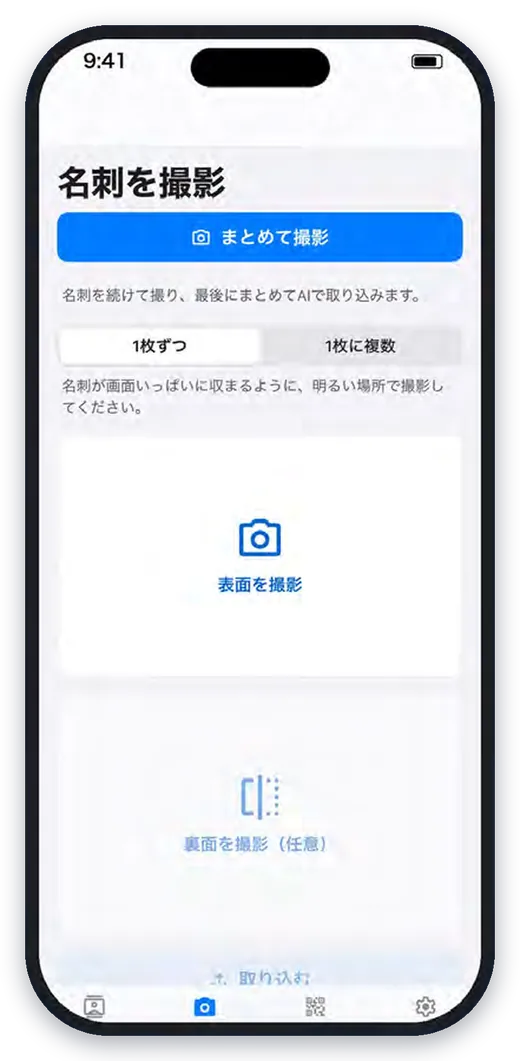
Snap — choose how to capture

A stack of cards from a trade show or one card at a time, all in the same app.

  • Batch capture

    Shoot card after card, then let AI import them all at once. Handy after a trade show.

  • Front and back

    Read both sides as one card — including cards with English on the back.

  • Several cards in one photo

    Lay cards out on a desk and take one photo. Each card is cut out and read separately.

  • From photos and files

    Your camera roll, plus images in iCloud Drive, Google Drive and OneDrive.

  • Digital card QR codes

    Scan the QR code of digital business cards such as Eight.

  • Works offline

    Cards are kept on the phone and sent automatically when you are back online — never registered twice.
Read — no typing needed

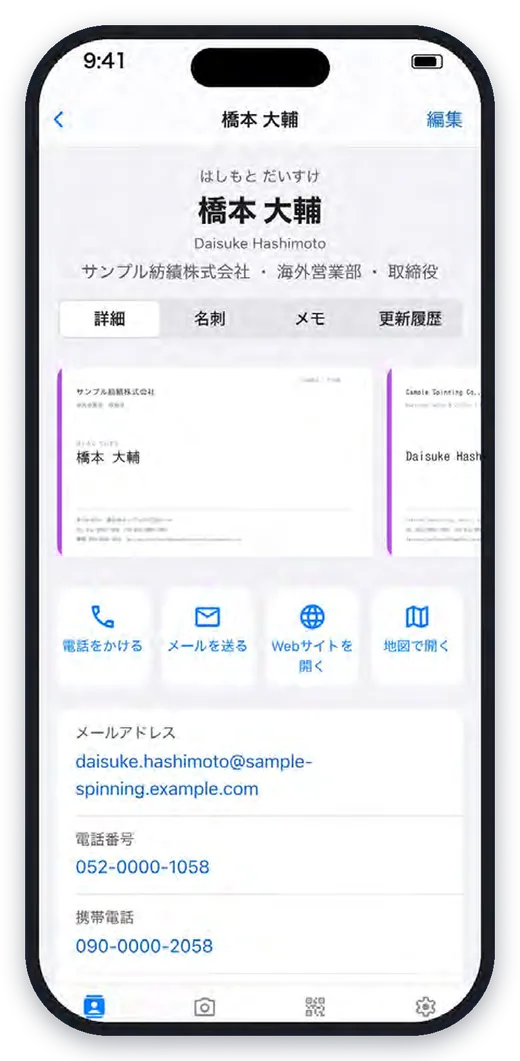
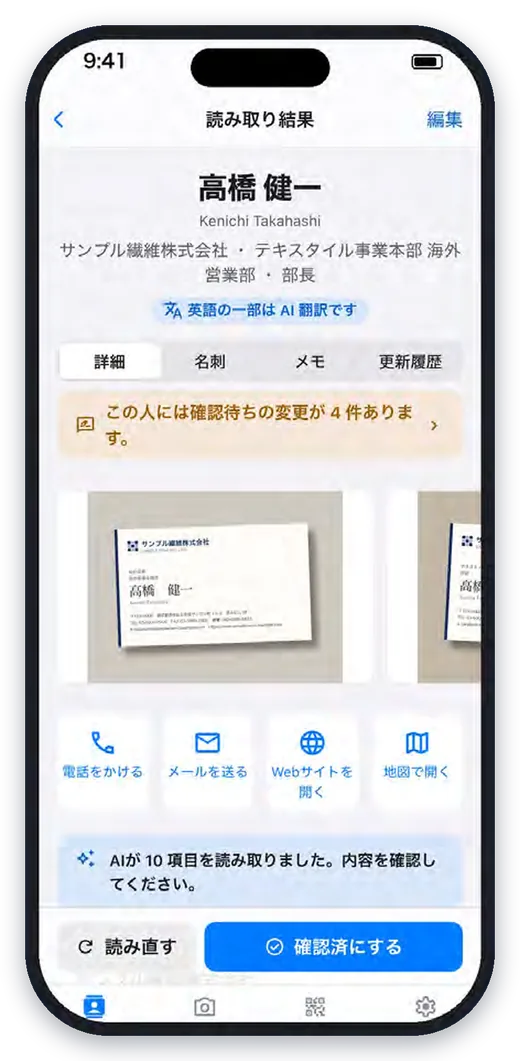
AI reads each card and fills in the card list field by field.

  • Both sides at once

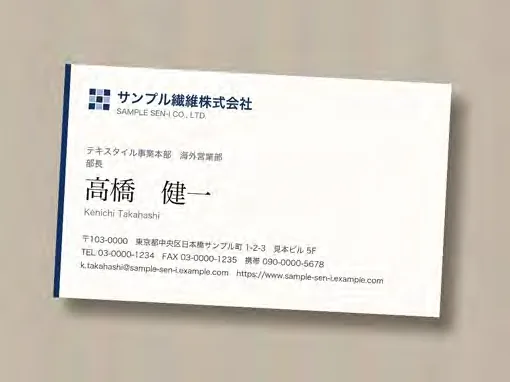
    Japanese on the front and English on the back in one go. Company, name and title are also stored in Latin letters.

  • Every contact field

    Department, phone, mobile, fax, email, URL, postal code and address.

  • Confirm before it counts

    Cards read by AI are saved as “Unconfirmed”. Review them, then tap “Mark as verified”.

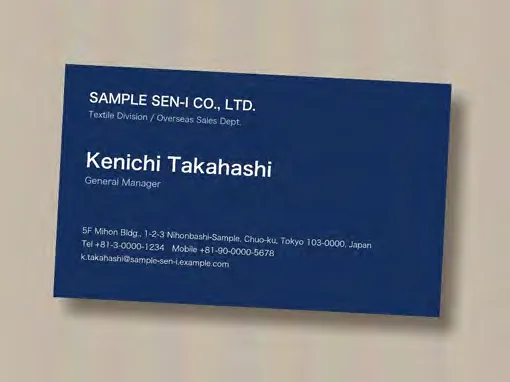
The screen shows a fictitious card actually read by the app.

Front
Front
Back (English)
Back (English)

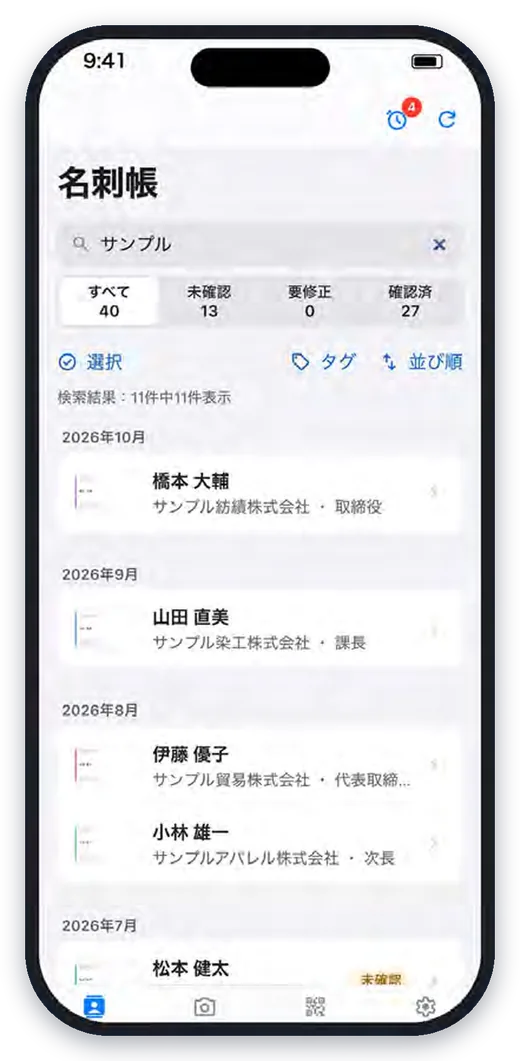
Search and contact — right there

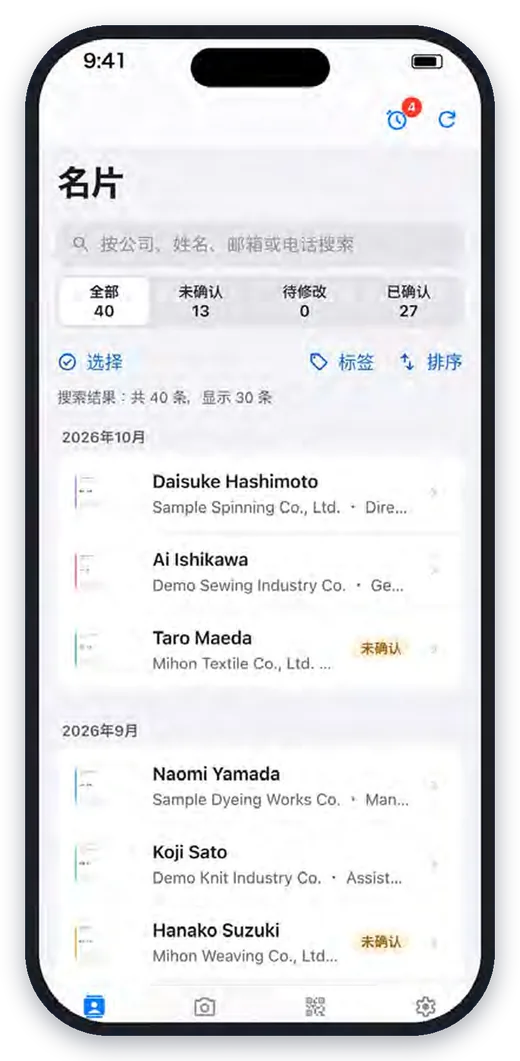
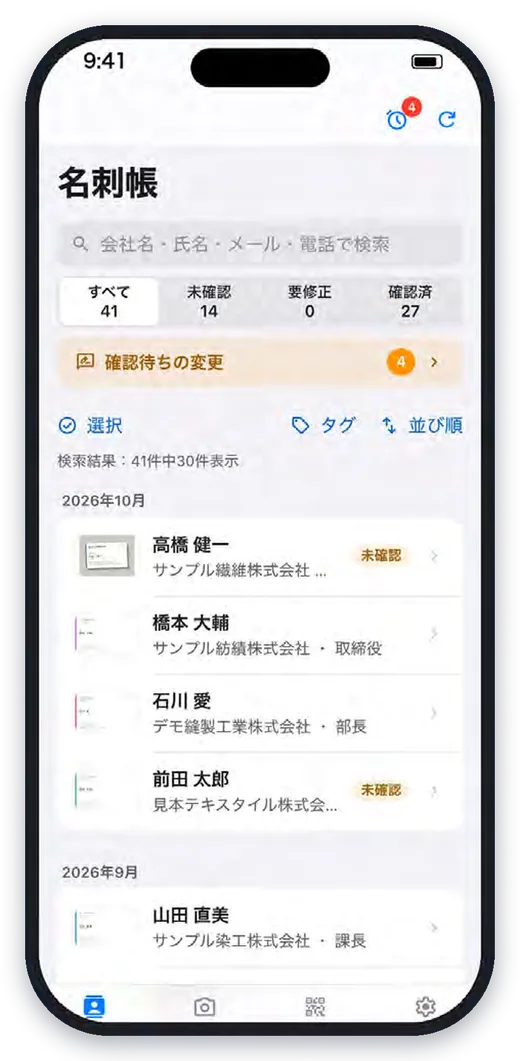
Find someone in the card list, then call, email or open a map without leaving the app.

  • Search by company, name, email or phone

    Filter by status (Unconfirmed, Needs fix, Confirmed), tags and sort order.

  • Phone, email, web and maps

    Calls go through a confirmation screen, so you never dial by mistake.

  • Save to your phone’s contacts

    Add only the people you need to your phone’s address book.

  • Colleagues who know this person

    See who in your company registered this person’s card, and when they last met.

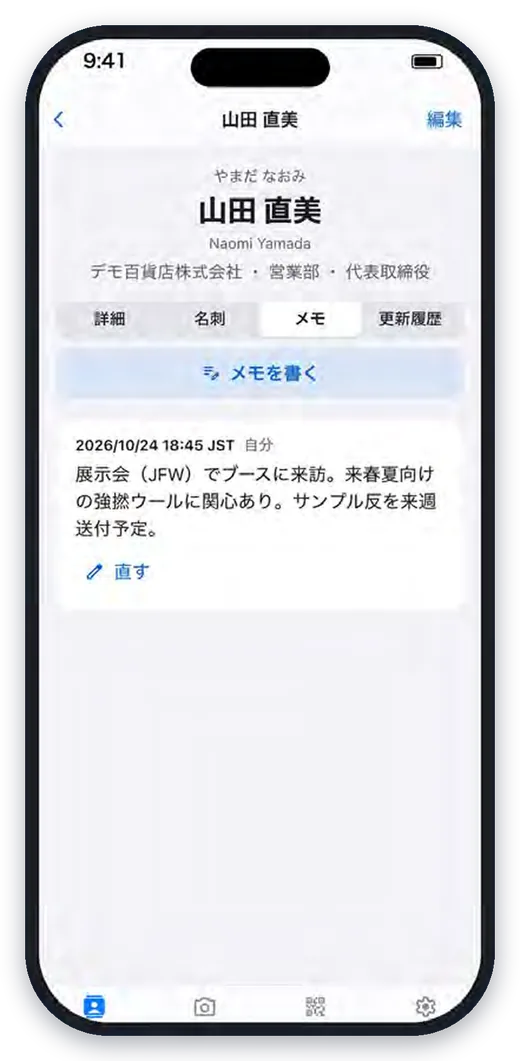
Record — meeting notes and follow-ups

Keep “who, when and what was discussed” together with the card.

  • Meeting notes

    Note the fabrics, lot sizes and delivery dates they were interested in, along with the date you met.

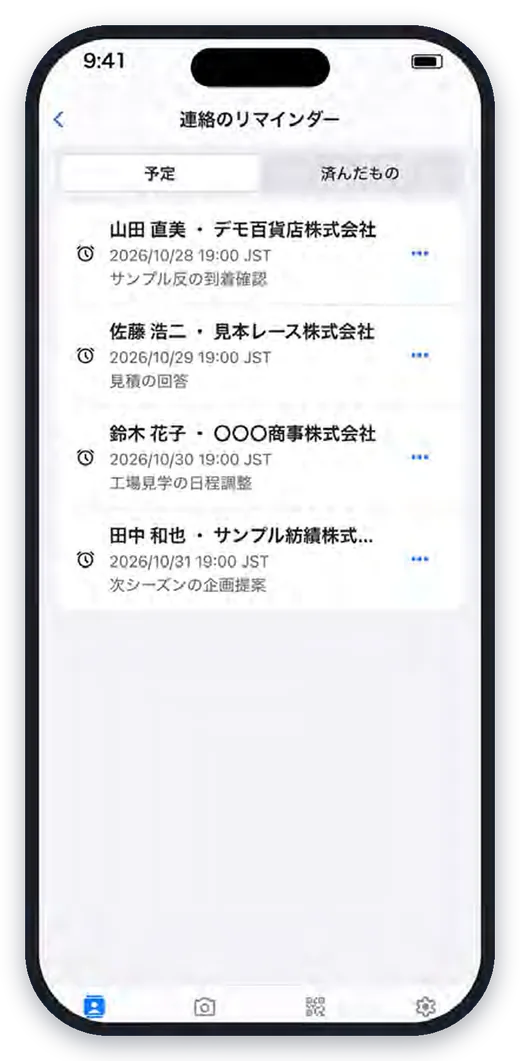
  • Contact reminders

    Get a notification at the time you set — “check the sample yardage arrived”, “reply with a quote”.

  • The same record on the web

    Notes also appear under “Activity” in the web card list, so the team can pick them up.

Never miss a promotion — changes to confirm

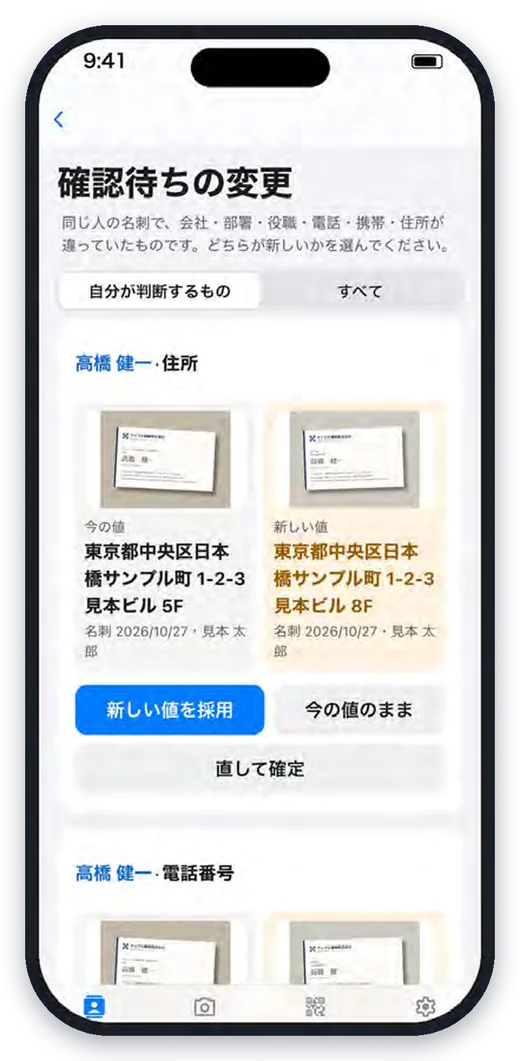
Scan a new card from the same person and BIZCARDS shows what changed.

  • Same person, only the differences

    If someone with the same email is already in the card list, the new card is added to them, and changes to title, department, phone, mobile or address are shown side by side.

  • Update with one choice

    Choose “Use new”, “Keep current” or “Edit”. Every change is kept in the history.

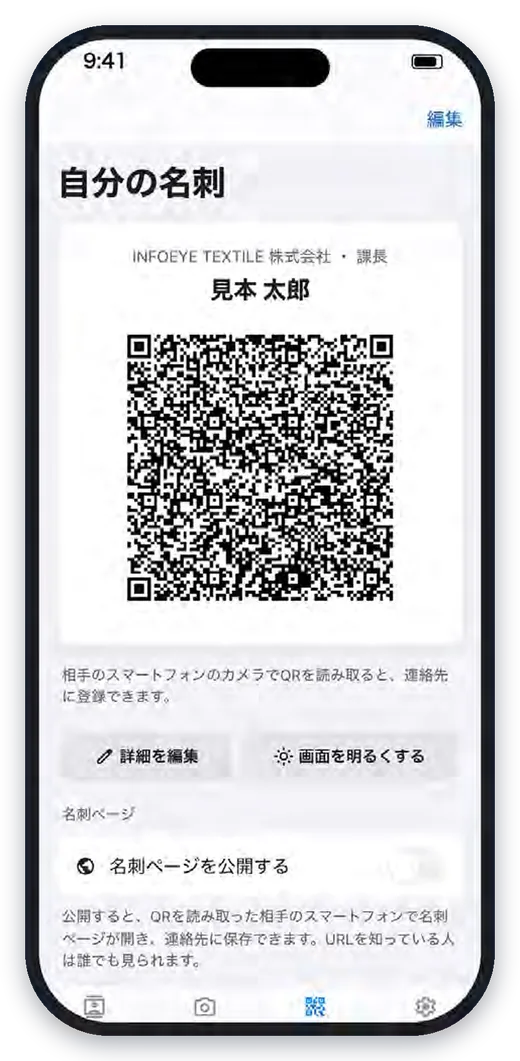
Share your own card — with a QR code

Run out of cards? Just show your phone.

  • They scan it with their camera

    No app needed on their side. Scanning the QR code lets them save you to their contacts.

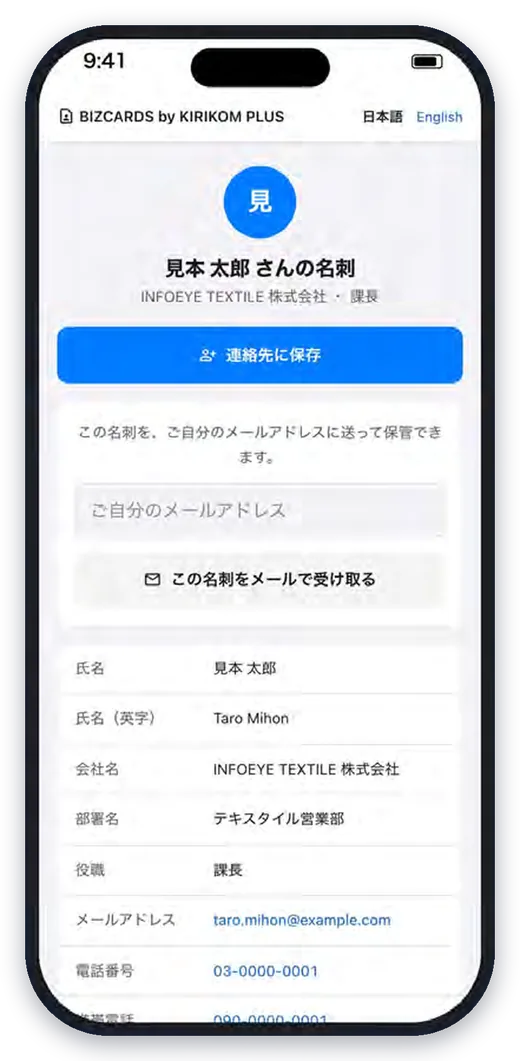
  • Card page (optional)

    If you publish it, your card page opens on their phone, where they can “Save to contacts” or have it emailed. Switch between Japanese and English.

  • Brighten the screen

    Makes the QR code easy to read even in a dark hall.

One app for overseas offices and staff

Switch the display language; names and companies are listed in Latin letters.

  • Switch the display language

    Japanese, English, Chinese, Korean and more. In languages other than Japanese, names and companies are shown in Latin letters (left: the Chinese screen).

  • English names prepared by AI

    In the web card list, “Translate to English” fills in missing English names, companies and titles in one go.

  • Dark mode

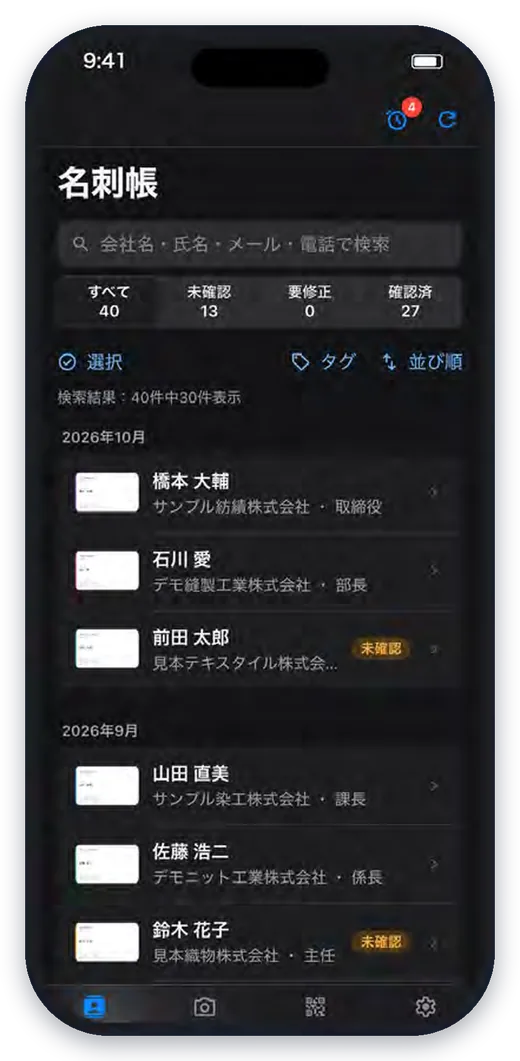
    Follows your phone’s setting automatically (right).

02

What you can do on the web (KIRIKOM PLUS)

Review, organize and export on a PC — plus more ways to import, and company-wide controls.

Browse and organize on a PC

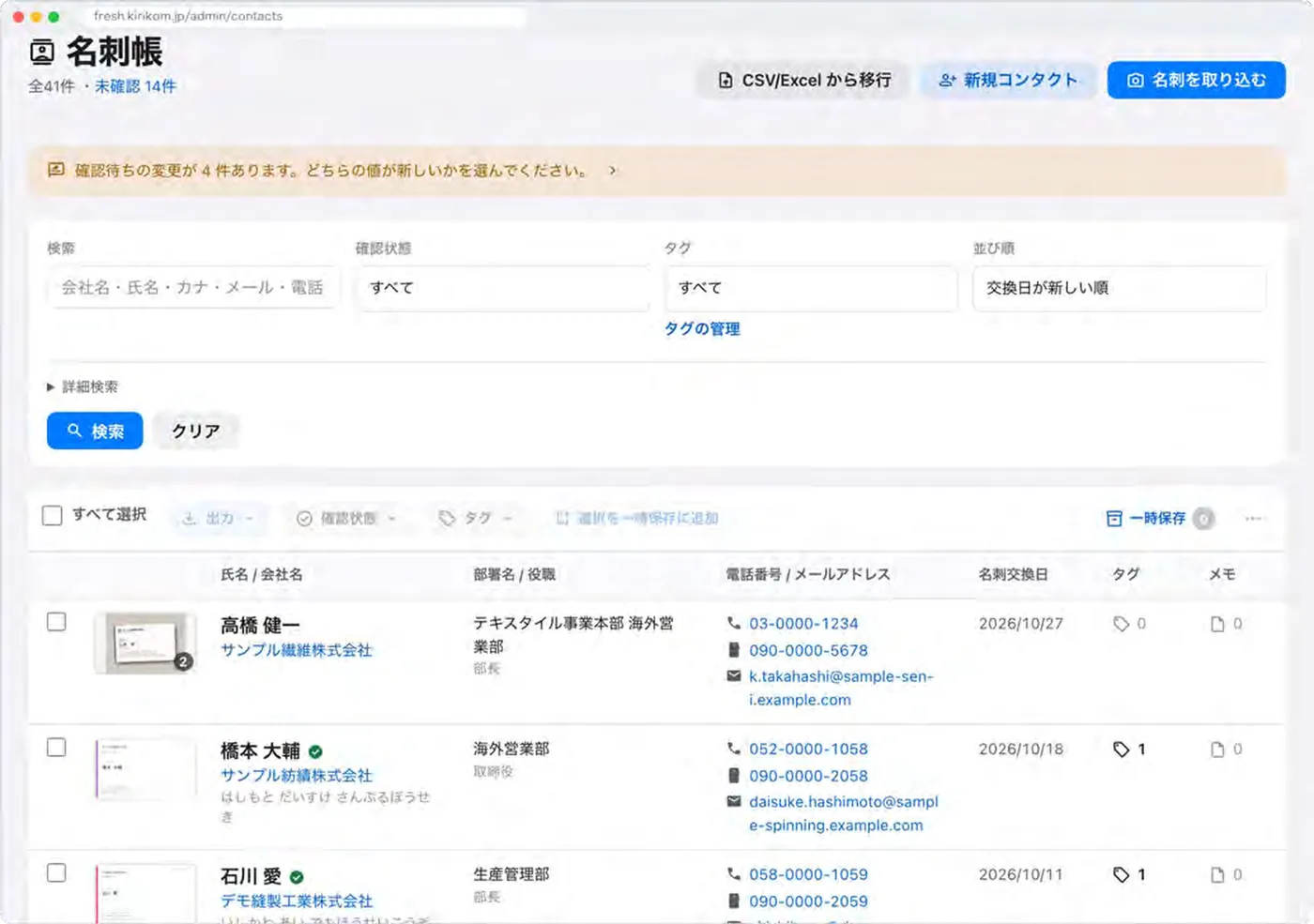
Organize by status and tags, then act on many cards at once or export them.

  • Manage by status

    Unconfirmed, Needs fix, Confirmed. Only confirmed contacts are offered as addressees on documents and as email recipients.

  • Tag them

    Supplier, customer, factory, trade show — color-coded tags your company defines.

  • Bulk actions

    Tag, set status, translate to English, re-import cards, delete.

  • Export to Excel and CSV

    Excel and CSV (UTF-8 / Shift_JIS). vCard for individual contacts.

Everything about a person in one place

Card images, change history and activity, gathered per person.

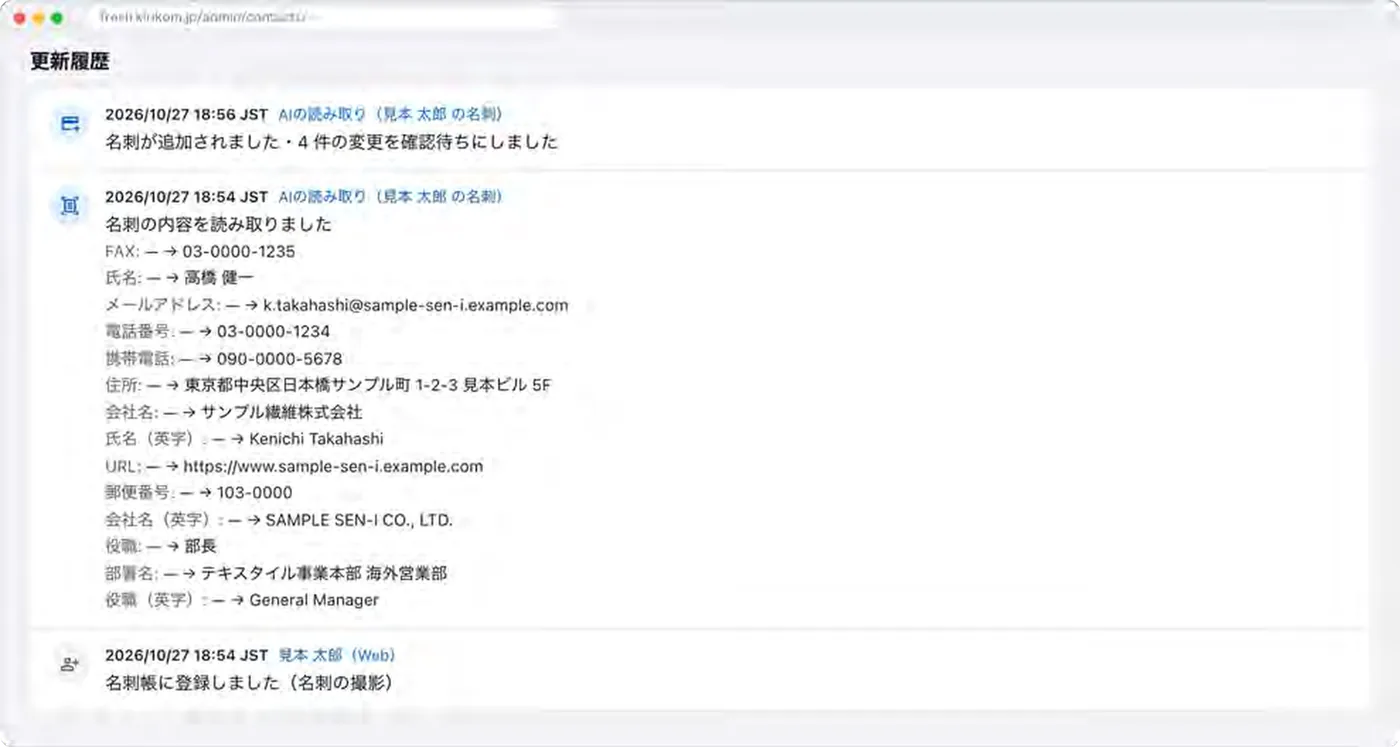
  • Change history

    Who changed what, and when. What the AI read is kept field by field too.

  • Activity

    Notes, visit logs, AI visit reports and trade show visits in time order.

  • Merge duplicates

    Combine people listed under “Contacts that may be the same person” (never merged automatically).

  • Others at the same company

    Jump from a company name to everyone you know there.

Many ways to import — bring your existing data

Import cards from the web as well, and move over from other card apps.

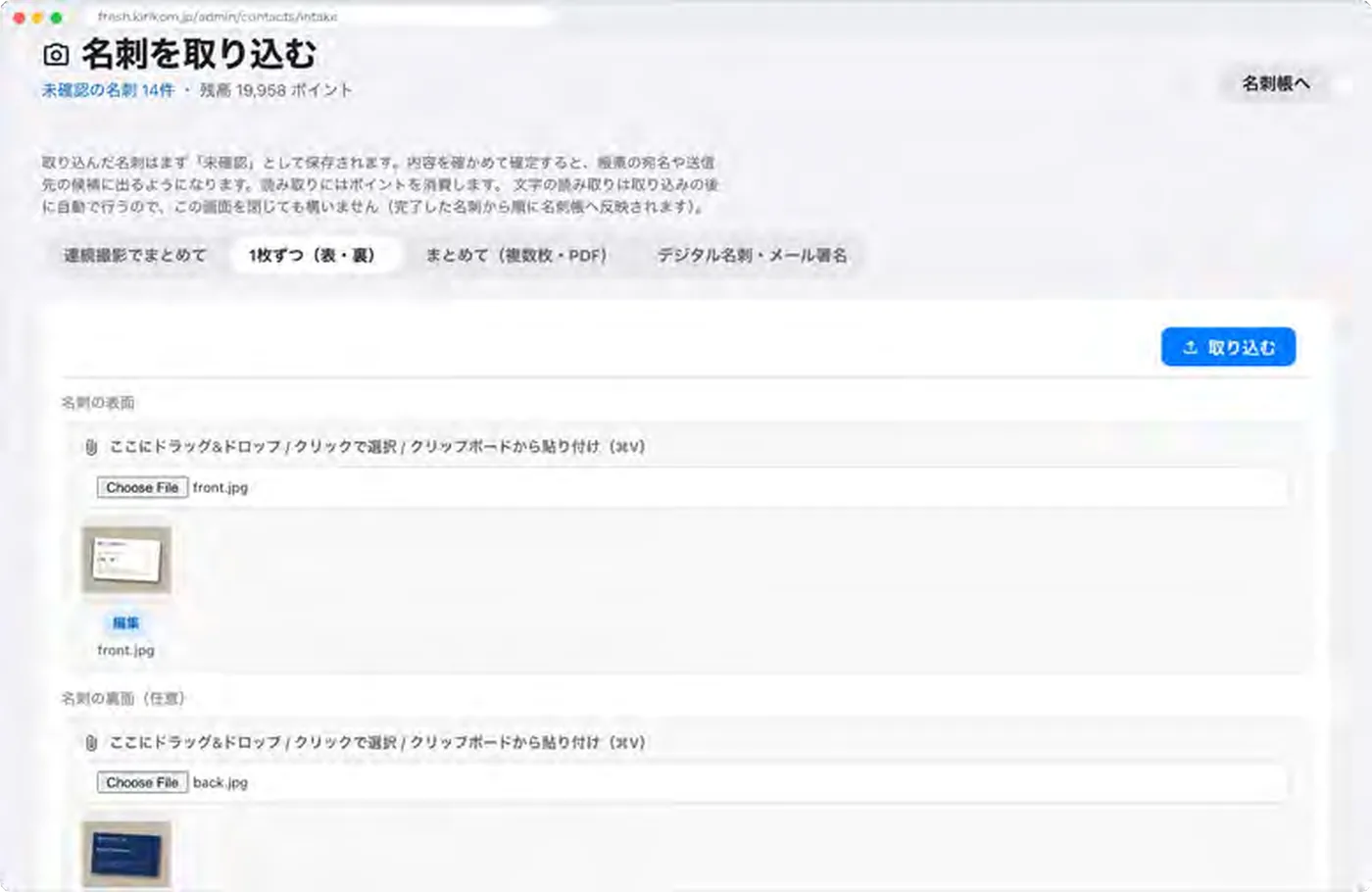
  • PC camera and images

    Continuous capture, front and back, drag and drop or paste.

  • PDFs from copiers and ScanSnap

    Drop the PDF in and each card is cut out page by page and read.

  • Move from CSV or Excel

    Files exported from Eight work as they are. No AI is used, so no points are needed.

  • Digital cards and email signatures

    Register from a digital card URL or the text of an email signature.

Managed safely, as company cards

Business cards belong to the company, not to individuals.

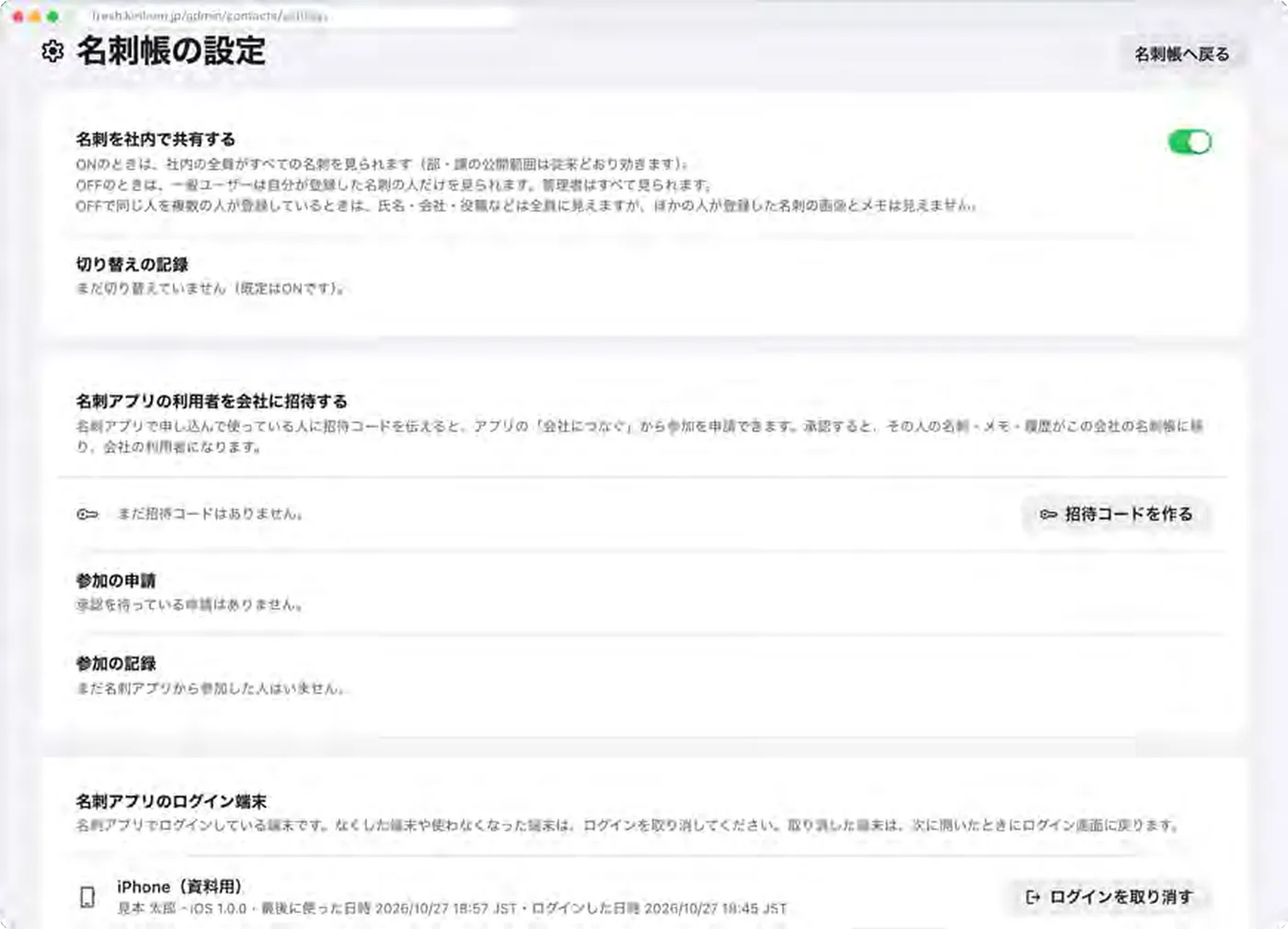
  • Choose how cards are shared

    ON: everyone in the company sees every card. OFF: regular users see only the people whose cards they registered. Department and section visibility also applies.

  • Manage signed-in devices

    Administrators can sign out lost or unused devices from the web.

  • App lock

    Face ID or fingerprint to confirm it’s you when the app opens.

  • Your usual sign-in

    Password, email link, Google, Microsoft or Apple account, and two-step verification.

  • Data separated by company

    No other company can ever see your cards or images.

How textile businesses use it

In the course of everyday sales work, business cards naturally become a company asset.

  1. 01

    Trade shows

    Scan cards in batches at the booth. With a weak signal they are sent later automatically — and they’re in the card list before you’re back at the office.

  2. 02

    After a meeting

    Note the fabrics, lot sizes and delivery dates they asked about. Follow up on samples and quotes with reminders.

  3. 03

    Overseas trips and factories

    Read English cards front and back at once. Overseas staff use the same card list in their own language.

  4. 04

    Staff changes

    Confirm a new title from the new card. Cards and notes stay in the company card list and pass straight to the successor.

  5. 05

    Seasonal greetings

    Import the card list into a mailing list (when you use KIRIKOM PLUS email campaigns).

Just snap the card — searching, contacting and handing over all follow from there.

Getting started

Bring your existing card data over and start right away.

  1. 1

    Prepare accounts

    BIZCARDS uses your company’s KIRIKOM PLUS accounts. Contact us about your contract.

  2. 2

    Sign in to the app

    Install the app on iPhone or Android and sign in with your usual account.

  3. 3

    Move your card data

    Import CSV or Excel files exported from Eight and other services on the web.

  4. 4

    Set your rules

    Decide on card sharing and tags (supplier, customer, factory, etc.) and go.

AI card reading and translation to English use KIRIKOM PLUS points.

BIZCARDS by KIRIKOM PLUS

Snap it, and every card
becomes a company asset.

For inquiries or a demo, please get in touch.